Excellent Little Apps: PDF-Shuffler

Rummaging through my blogposts related to Ubuntu, too many of them are grumbling or complaining posts. We forget about the awesome stuff in Ubuntu because it Just Works; it’s the stuff that’s broken or that we dislike that consumes our attention.

So, let us now praise excellent little apps. There’s a Unix/Linux tradition of apps that do one job, and do it well, and that has continued into the desktop/GUI era.

I’ll start with PDF-Shuffler. All it does is merge & break apart PDFs, but it does it very intuitively, with a UI consisting of four buttons and a main screen. You can even drag’n'drop between two different PDF-Shuffler windows.

I use PDF-Shuffler regularly as an adjunct to Inkscape, which can produce PDF very easily but has (so far) no mechanism for multi-page documents (this is an SVG-spec issue, not just an Inkscape issue). PDF-Shuffler makes blending a group of single-page PDFs from Inkscape into one document for publishing painless and brainless.

A recent project involved a mostly-text six page PDF created in OpenOffice and four graphic-heavy single page PDFs from Inkscape. Rather than chance OOo’s SVG import, or hack about with Scribus (a very powerful app, but not one I use enough to be fluent with), PDF-Shuffler allowed me to merge Inkscape’s high quality PDFs with the OOo text PDF.

I can’t promise this will become an entirely regular feature, but I want to do a bit more blogging on the smaller, more elegant, often forgotten apps and features available in Ubuntu. If nothing else, it’s a change from complaining!

Appreciating Ubuntu Even More

Want to learn to appreciate the power of a modern desktop Linux install? Spend a week at your folk’s place, swearing at your stepmother’s WinXP box. Shockingly crippled… how do Windows users victims put up with this crap? No integrated FTP or SSH in the file manager, text editor that doesn’t recognize and support HTML or PHP, no support for SVG, OGG, PNG or a host of other useful file formats… blergh.

I love visiting the folks, I’m actually glad it’s snowing so we can hopefully get a good cross-country ski in tomorrow, but getting back to a proper, fully-functional computer will be kind of nice!

Updates, Lucid, Oahu, Etc

Haven’t blogged in over a month – so much for regular updates and such. Oh well.

New version of Ubuntu is out, haven’t upgraded yet due to lack of hard drive space – still haven’t done the warranty RMA on my big, but glitched, 500GB drive. Maybe next week. I have played with Lucid on my brother’s machine – WTF is the thinking behind the wandering window control buttons? I stopped playing with Ubuntu/GNOME themes several releases ago – the defaults worked fine and looked OK – but wandering window buttons are irritatingly stupid, especially on an LTS release. Reverting to the older, saner (browner…) theme will have to be the first thing I do once I do move up to 10.04.

I already get rid of the multi-user-switcher thing and the seperate power-management widget as useless panel clutter on this single-user desktop machine; possibly my perferences for the ideal Ubuntu appearance fossilized several releases ago?

In more personal, cooler news, just got back from a week in Hawai’i. Never been before, and I loved Oahu, despite Honolulu’s traffic! I’m still going through several hundred photos, but here’s a few favourites from the first couple of days of the trip!
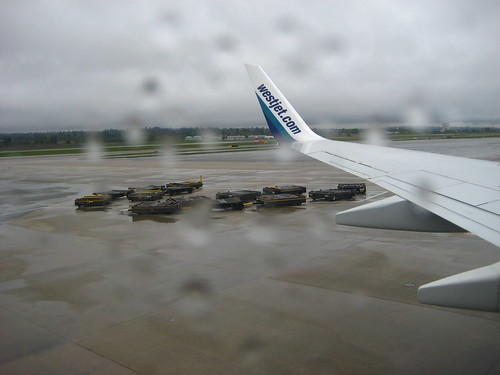
It Always Rains In YVR
Beaches of Waikiki
Shorebreak
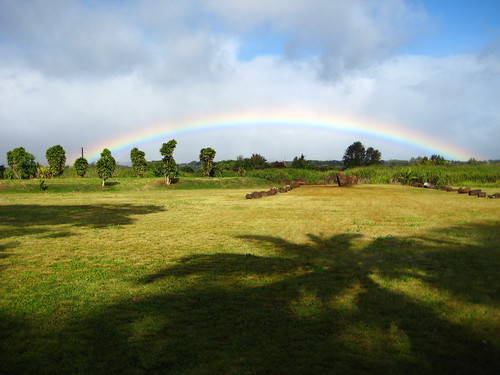
Rainbow At The Royal Birthstones
Drink Locally, Think Globally

Perhaps the F stands for “Fail”?

Recent news that Ubuntu will likely be giving up the GIMP as part of the default install are interesting, but not a huge concern to me – I already have to install Inkscape, so adding the GIMP to the huge sudo aptitude install command I run on a shiny new Ubuntu install isn’t a big deal. I’d love having both Inkscape and the GIMP by default, but there’s only so much space on a CD-ROM-sized ISO. Fair enough.

What still concerns me is F-Spot by default. Not because of Mono fearmongering – I really don’t care what language the thing is written in – but just because it’s got some very irritating behaviours compared to the older lightweight editor/viewer/photo manager I still use, gthumb.

Allow me some simple demonstrations of why gthumb is still, in many ways, superior to f-spot.

I take a fair number of photos, and as anyone knows, they add up in filesize very quickly. I shoot fair-sized JPG, not the very largest my camera could, and not RAW, and I still have 10.2GB of images in Photo – 4133 images, apparently. I´ve only owned a digital camera for about two and a half years. Someone with a longer digital history, or who shoots RAW, or who simply takes even more photos than I do, is going to easily dwarf my photo collection. My photo collection is still old enough to have pre-dated F-Spot in Ubuntu, however.

So, I want to view, manage and do light editing of this existing photo collection. Fire up F-Spot (Applications->Graphics->F-Spot Photo Manager). There is no File->Open command, and by default the “Browse” button on the toolbar does absolutely nothing… so File->Import it is. Aim this at my existing ~/Photos directory… and by default it will duplicate the entire thing, rearranging the files to it’s liking as it duplicates them!

F-Spot will also take an insanely long time trying this – I aborted the whole mess ten minutes in, with only 1434 of 4133 files “loaded” (what does that mean? they don’t need to be loaded, they already exist in ~/Photos!) and the “Import” button still greyed out…

Are you serious? All I want to do is crop one of them! Abort, abort! Fine, we’ll find an existing image through Nautilus, and choose to open that in F-Spot individually.

Nope, sorry. That gets you your image, without the insanely long Import process, but it’s in a little window called “F-Spot View” with none of the editing tools available, and no way to switch to an actual editing window

Now let’s try the same simple procedure(s) in gthumb. Same existing photo collection, in the Ubuntu-supplied default ~/Photos, but first we’ll install gthumb with your favourite package manager. (gthumb languishes in Universe these days, so have that enabled) Now go Applications->Graphics->gThumb Image Viewer. No Import button, any images that happen to be in your ~ will show up on one pane, and a Nautilus-style folder navigation pane to the left. Rummage through your files with that pane, no need to wait for some sort of unexplained “importing”of existing files here.

Or go the other way – find an individual image through Nautilus or on your desktop, right-click, choose Open With->gThumb, and open your image. You get exactly the same window you would if you’d opened gthumb via the menu, with all the lightweight editing options you require right there.

No “importing”, no attempt to duplicate your entire photo collection, no crippled “viewer” window with no useful tools in it, and  gthumb will traverse your entire directory, not just the one folder it insists on importing/duplicating everything in. Oh, and no distracting “Mono is of teh devil!!!11111” nonsense either, just for a bonus. Somebody does need to code an upload-to-Flickr plugin for gthumb, granted.

While the GIMP is being removed from Ubuntu 10.04, let’s ditch F-Spot and return to gthumb too!

Launchpad bugs for most of the above Fail-spot issues: 488566, 488574. Closely related, and older: 182862.
Related silly “Import” bugs: 412091.
There’s probably many others over on Gnome’s bugtracker, but I only searched LP’s Fail-spot bugs for now.

How To Get Backup Religion

… have your entire system freeze solid, and then, in the recovery console, fsck choke because of a galloping screenful of badblock errors. Then you realize you have no working LiveCDs in the house. And your last backup dates from April. Oh crap.

That was Sunday night; Monday I went down to my brother’s, snagged a couple of spare USB keys for backup, and got him to burn me an Ubuntu 9.10 LiveCD. If I ever meet the genius who originally thought up Linux LiveCDs, I’ll buy him a beer. Or as many as he wants, really… Booted up into the LiveCD, found that according to gparted, there was nothing much wrong with my /home directory, but my /root was utterly screwed and unreachable. Phew. Systems can be replaced, personal data, not so much.

I have two harddrives in this tower – one 18 month old 500GB that was in use, and which has now thrown the bad blocks at me. The older 120GB drive is not in use, but still plugged in, so I’ve reformatted it, repartitioned, and tomorrow will reinstall Karmic from scratch. I’ve also been filling USB keys and burning DVDs of a lot of my less replacable personal stuff, just in case the already-damaged 500GB drive decides to utterly blow itself up… there also isn’t enough space on the 120GB for all my stuff, unsurprisingly, so some of it is going to be living on DVDs for a while.

The 500GB is still under warranty, so it’ll be wiped and sent off to Seagate post-haste. Nifty Linux discovery of the evening: if you need your hard drive’s model and serial numbers, System -> Administration -> Disc Utility can provide both, and much other useful info about just how your screwed-up hard drive is screwed up.

And a Dear Lazyweb request: Where the heck does Evolution hide all it’s data (it’s not all in .evolution, far as I can tell) and how can you coax a full dump of this data out of a non-functional install? My last .tar.bz backup from Evolution was back in April…

I haven’t decided on a backup solution for the future, but I obviously need one, something better than “DVDs full of a few bits and pieces, burned when I get around to it, which isn’t often…”. Money is tight, so once my warranty-replaced 500GB is back online I’ll probably use the 120GB drive as a backup solution until I can get something better and larger. A 500+GB external drive should probably be on my Christmas wish list, I’m thinking.

Final Score: probably no personal data lost, barring the Evolution mess, cramped quarters on an old hard drive while the new one is RMA’d, and much time lost while I sort the mess out. And a new appreciation of both live CDs and backups…

Something To Do With Koalas?

Upgraded to Ubuntu 9.10 along with everyone else in the world (and their dog) last night. Had a bit of a scare when the computer wouldn’t mount /home, but a reboot and fsck during startup cleared that up.

Then I realized I had no 3d accel… this after having flawless 3d accel in 9.04 with the Open Source R300 drivers. Hardware Drivers wasn’t showing me anything, which was odd. Turns out the r300 drivers no longer support my old ATI card, so I need the alternative (but still Free) “ati” drivers. Had to install that manually, because Hardware Drivers thought everything was just fine off in driver-land. That’s the first time in several releases I’ve had to do a thing manually to get 3d working… does the Hardware Drivers app only track non-Free drivers like fglrx? It certainly didn’t seem interested in letting me know the “ati” drivers were what I needed…

That aside, 9.10 is very slightly faster booting than 9.04, and has some new toys to play with. Inkscape 0.47 is the big one for me — lots of new shiny there to distract me!

Dear Epiphany Developers, The 1990s Called, They Want Their Browsing Experience Back…

One odd glitch in the Epiphany webbrowser – “Open in New Tab” is gone from the right-click context menu when you right-click on a link. “Open Link” and “Open in New Window” are the only optionsf? Epiph still supports tabs (middle-click still works, thank Dog), but removing “Open in New Tab” seems like a major regression. Last time I used a non-tabbed browser was the late 1990s, for crying out loud. (Opera FTW. If Opera didn’t exist, what would Firefox and Co. have copied?) “Open in New Window” is almost always a waste of time. Tabs are a far more elegant solution than having your app puke windows all over your desktop, so why has Epiphany made them unavailable from the right-click menu?

(I tried to file this as a bug over on Launchpad, but LP timed out on me three times, so guess that bug report can wait a day or two longer.)

Aside from the right-click/tabs screwup, the new Epiphany with webkit seems slightly faster than the old Gecko version, and hopefully it’ll be more stable too. We shall see.

New Ubuntu, new shininess (I like the new login & loading screens, very slick!) and some fun new bugs, too. And a faint scent of eucalyptus, for some reason.

Ubuntu One, Irony, and Open Sourcing

Disclaimer, because they seem to be popular when posting UbuntuOne commentary to Planet Ubuntu right now: These are my opinions. I don’t work for Canonical, I don’t program, I’m just an Ubuntu user, Ubuntu Member, and opinionated SOB. End stupid attempt at disclaimer.

When you go to log in to the new, shiny & controversial Ubuntu One, you find it uses Launchpad’s authentication service to login. The closed beta currently means that everyone using it already has an LP account, of course, but they’re obviously planning for the future over on UbuntuOne – there’s a little blurb called “What is Launchpad and a Launchpad Account?”

It says, in part: “Launchpad is the central point where we gather all sorts of interactions around Ubuntu, Canonical and free software generally.”

Free software generally? Really? In which universe? Big chunks of Launchpad are still non-Free, and of course about half the mess with Ubuntu One is the fact that it’s only half-free – the client is Free, the whole server side is totally proprietary.

Another, even larger and more awesome irony: The proprietary nature of Ubuntu One’s server-side code has, so far, mostly produced controversy and a nifty but not ground-breaking web app. The open-source client side has already produced parts of a nifty new UI for encrypted directories that will (hopefully) be in the next release of Nautilus.

All the closed-source server code for Ubuntu One has produced in the past week is controversy. The power of open source shows once again…

If Canonical can swallow it’s pride, this is a really easy problem to solve: 1. Change the name. 2. Produce the source for the server side. 3. There is no point 3. Good night and good luck.

Panoramas & Snow, Round 2

As a followup to my previous post on Hugin troubles (many thanks for the feedback there, everyone) I’ve done some more fiddling, and discovered the main issue: Hugin will export completed panoramas happily in TIFF, but not in other formats (JPG, PNG, etc) despite those options appearing in Hugin’s dropdown menus. It crashes or freezes every time when asked to do non-TIFF output.

That’s an irritation rather than a huge issue, though, as the GIMP quite happily converts TIFF into other formats. As witness this pano of Sunday’s lovely weather:

It Never Snows In Victoria

I also did a second pass (with Hugin instead of Pandora, which I used earlier) on the previous set of images:

CYYJ Snow Panorama, Take 2

And just to prove it wasn’t all a fluke, I dug out some year-old images I’d always intended to create a panorama of:

Wurzburg, Germany, Aug. 2007

So, Hugin works, within limits. Native non-TIFF output would be nice, but it’s not a showstopper. And panoramas are great fun – neat to give a super-wide-angle view with a very ordinary camera!